Add an image, a video or a document to a WhatsApp campaign
What you will have: Your campaign message goes out with your image, your video or your document.
A product shown in a picture is understood at a glance on WhatsApp, where plain text goes unnoticed.
Before you start
- Lesson « Create a WhatsApp message template and get it approved by Meta »
- WhatsApp is connected
Signed in to Genuka, this list ticks what your account already has.
The video
Why it matters
On WhatsApp, your customers scroll through dozens of messages. A product photo, a short video or your catalog as a PDF catches the eye and immediately answers "what does it look like?". Genuka lets you attach this media in two ways, depending on whether you write to all your customers or only to those who wrote to you recently.
Summary
- In a template: the media is placed in the template header and approved by Meta together with it. All recipients receive the same file. This is the normal route for a campaign.
- In a free message: the media goes out without a template, but only to customers who wrote to you within the last 24 hours.
Prerequisites
- Access to the Marketing menu (permission
marketing.*). - A connected WhatsApp number.
- The file, in the right format (see the table below).
Steps
Put a media in a template
-
Open Menu › Communication › Marketing › Templates, then Create a template.
-
In Header Type, choose IMAGE, VIDEO or DOCUMENT.
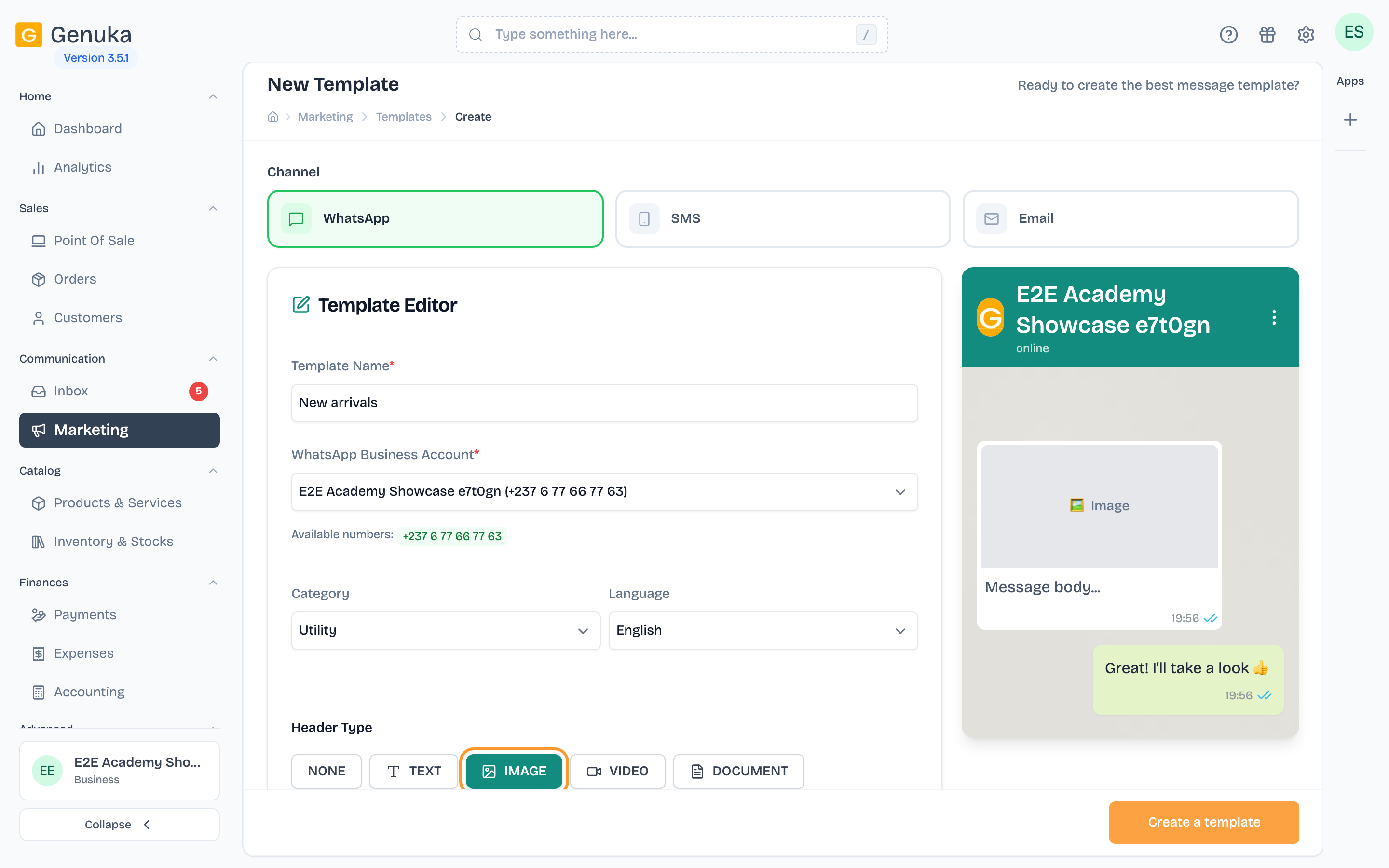 Pick an image header
-
Click the area that appears ("Select or upload an image" for an image). A window opens with two tabs:
- Upload New: drag the file or click to choose it, then Upload & Select;
- Media Library: reuse a file already uploaded, with Select.
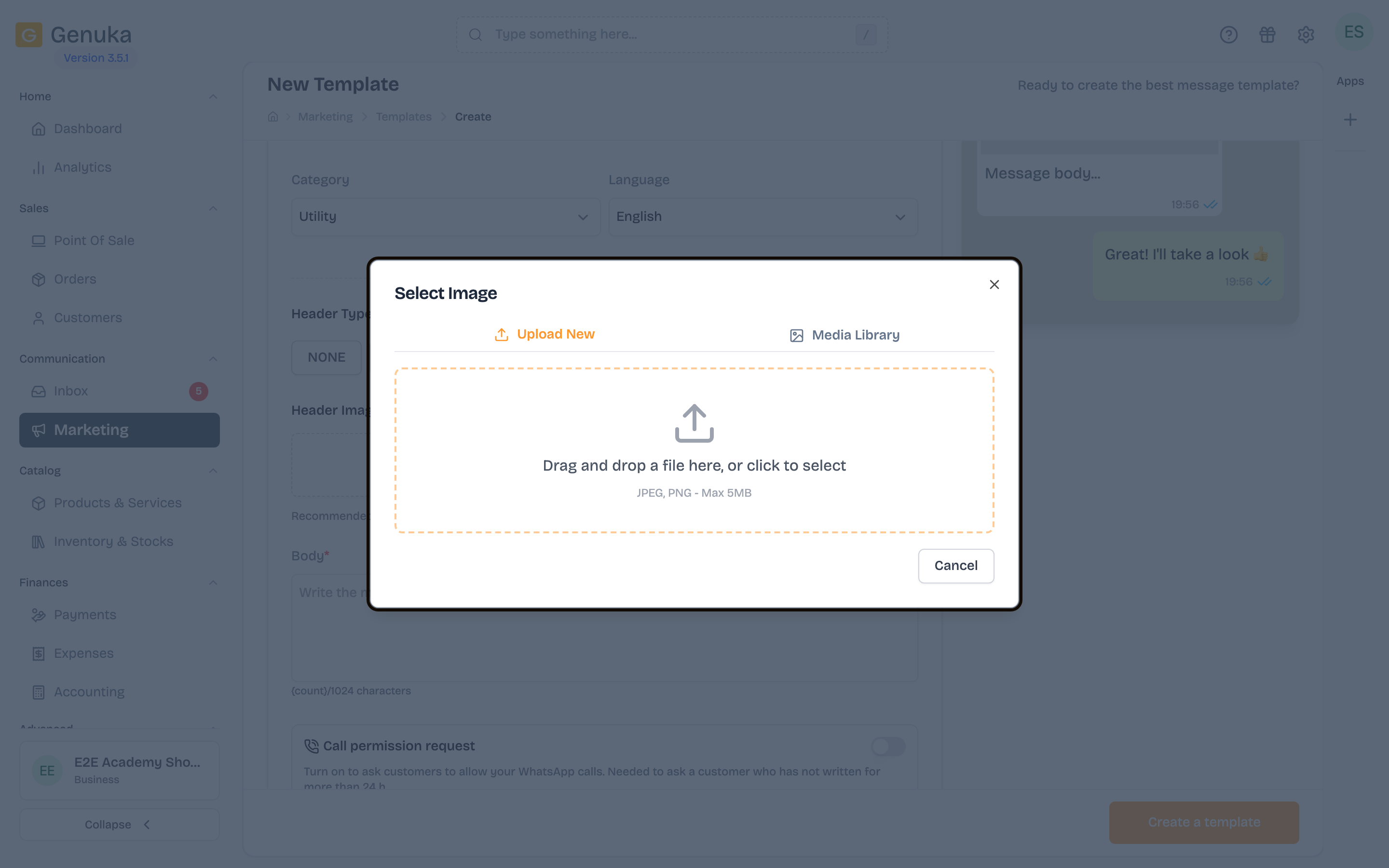 Upload a file or reuse one
-
The file shows in the editor and in the preview. Change lets you pick another one before saving.
-
Finish the template (body, buttons), then click Create a template. The media is sent to Meta with the template for review.
-
Once the template is Approved, choose it in a campaign: each recipient receives this media at the top of the message.
The labels in this window are shown in English in every language of the dashboard.
Send a media as a free message
-
In Menu › Communication › Marketing › Campaigns, click Create a campaign.
-
At the Content step, under Sending method, choose Free message.
-
In Message type, choose Image, Video, Document or Audio.
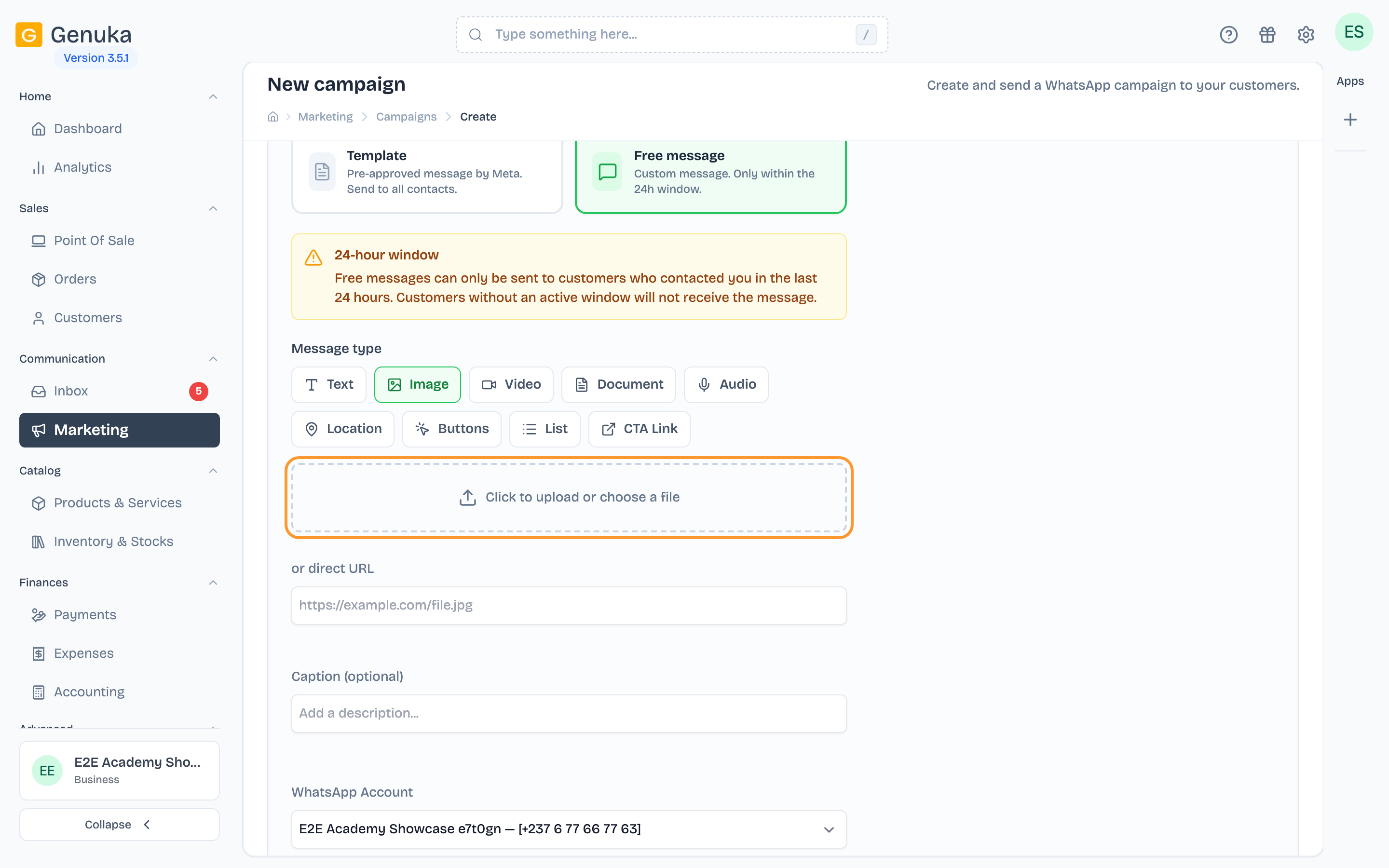 A media in a free message
-
Click "Click to upload or choose a file": upload a new file (Upload tab) or pick one from the Library. You can also paste a link in or direct URL.
-
If needed, add a Caption (optional), then continue with the campaign.
Only customers who wrote to you within the last 24 hours receive this message; the others are skipped.
Accepted formats and sizes
| Media | In a template | In a free message | Maximum size |
|---|---|---|---|
| Image | JPEG, PNG | JPEG, PNG | 5 MB |
| Video | MP4, 3GP | MP4, 3GP | 16 MB |
| Document | PDF, DOC, DOCX, XLS, XLSX, PPT, PPTX, TXT | PDF, DOC, DOCX, XLS, XLSX, TXT | 100 MB |
| Audio | no | MP3, OGG, AMR, AAC, M4A | 16 MB |
Files uploaded from these screens are stored in your media library (Settings › Website › Media Library), where you can find them again.
Edge cases and common mistakes
- "File too large": reduce the file below the stated size (compress the image, shorten the video).
- Changing the image of an approved template: the media is part of the template. Changing the file then saving (Update) submits the template to Meta again, which must approve it again. For a new promotion with a different visual, create a new template instead and keep the old one.
- The header type is locked once the template is created: a template without an image can't receive one. Create a new template.
- A call permission request template only accepts a text header.
- "The attached image or file could not be sent" on a recipient: WhatsApp could not fetch the media (not found or too heavy). Replace it, then send again.
- One media per message: a template or a free message carries a single file.
FAQ
Can I use a different image for each customer? No. A template's media is the same for all recipients. Only the text can be personalized, with variables.
Why use a template rather than a free message? A free message only reaches customers who wrote to you within the last 24 hours. To reach your whole customer base, you need an approved template.
Does the media cost more? No. A WhatsApp campaign costs one credit per message sent, with or without media.
See also
Sign in to keep track of the lessons you have done.
Open in Genuka