Choose a campaign's recipients (everyone, tags, list, segments)
What you will have: You know how to send a campaign to the right customers, and only to them.
A message sent to the customers concerned is better received and doesn't spend credits on those who aren't interested.
Before you start
- Lesson « Tag your customers (one by one or in bulk) »
- Customers recorded
Signed in to Genuka, this list ticks what your account already has.
The video
Why it matters
Sending the same promotion to everyone costs one credit per customer and tires those it doesn't concern. Genuka lets you aim at a precise group: your customers from one shop, your wholesalers, those who haven't ordered for three months. You see the exact number of recipients before paying anything.
Summary
The audience is chosen at the Audience step of campaign creation ("Choose your target audience"). There are three modes, which can't be combined: All customers, tags (to include or exclude), or a customer list picked by hand. For a group defined by a criterion (last order date, amount spent, product bought...), have the Genuka assistant find and tag it, then target that tag.
Prerequisites
- Access to the Marketing menu (permission
marketing.*). - Customers with a phone number: WhatsApp only reaches customers who have one.
- To target by tag: customer tags set on your customer records (see Customer tags).
The three audience modes
| Mode | Who receives the message | When to use it |
|---|---|---|
| All customers | All your customers who have a number. | A general announcement. |
| Select by tags | Customers who carry the included tags. | A group already identified: VIP, wholesalers, neighborhood... |
| Select customers | Customers added one by one or by search. | A small, precise list. |
These modes are mutually exclusive: adding a customer by hand switches the campaign to a manual list and removes All customers and the included tags; including a tag empties the manual list. A banner warns you before this happens.
Excluded tags combine with All customers or with included tags. "All customers" plus the exclusion of the "Wholesalers" tag gives: all your customers except wholesalers.
Steps
Create the campaign (Menu › Communication › Marketing › Campaigns › Create a campaign), fill in the Content step, then click Next → to reach the Audience step.
Target all customers
-
Stay on Select by tags. The first row is All customers, with their number.
-
Click Select: the button becomes Selected.
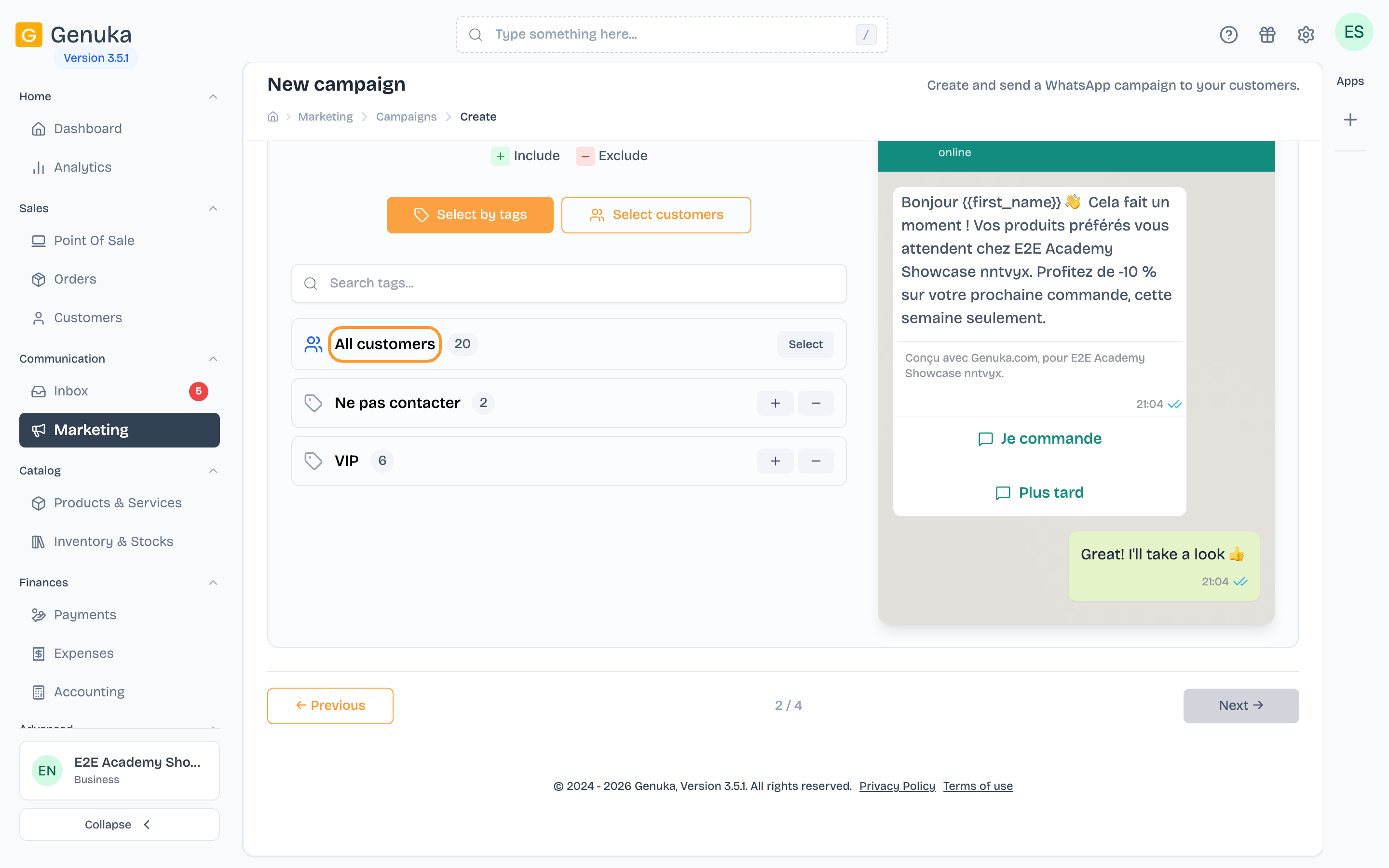 All customers
-
If needed, exclude tags with the − button (see below).
Target by tags
-
Stay on Select by tags. Under All customers, the list shows your customer tags with their number of customers; Search tags... filters the list.
-
On each tag's row, click + to include it ("Include customers with this tag", the row turns green) or − to exclude it ("Exclude customers with this tag", the row turns red). A second click cancels.
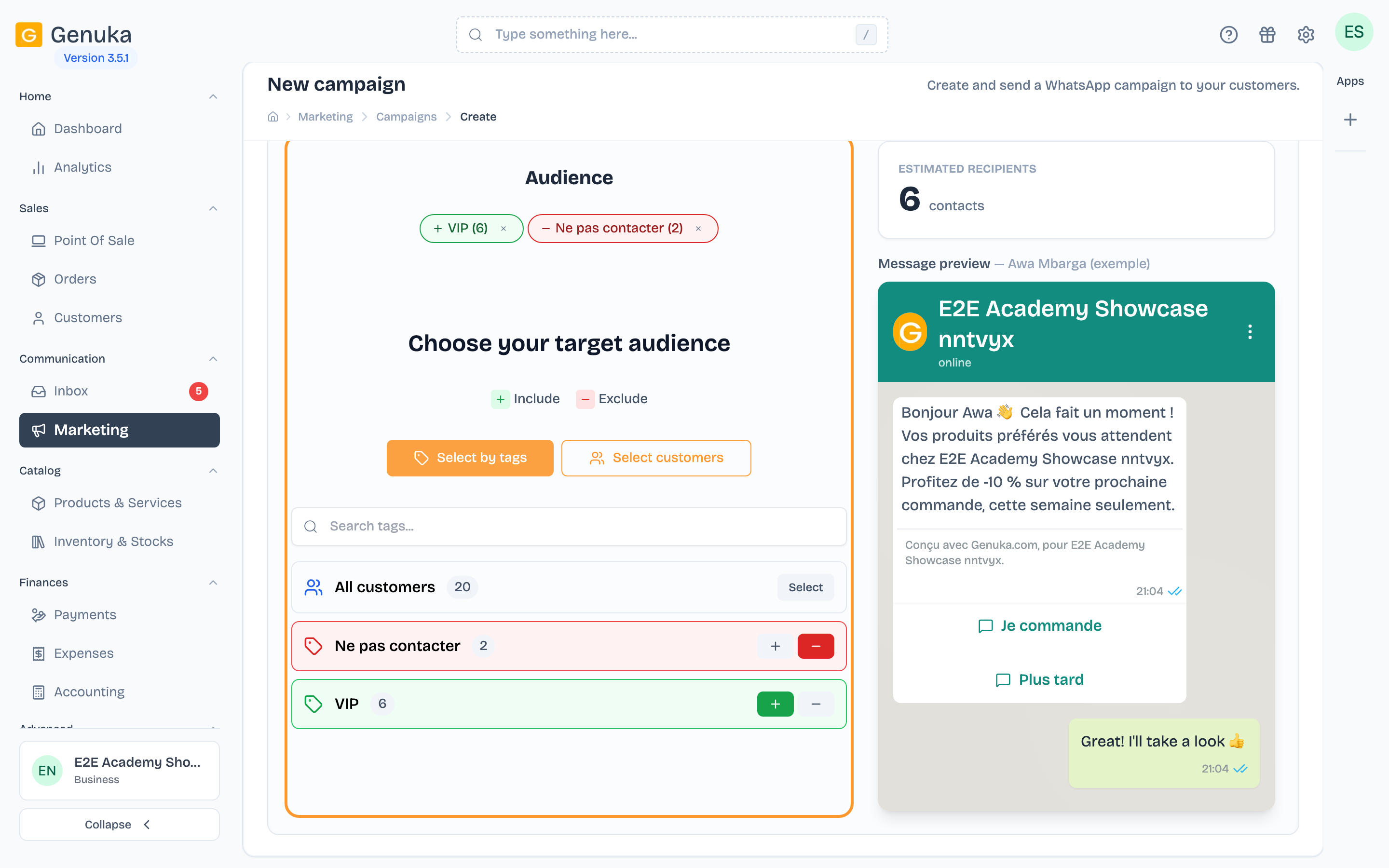 Include or exclude tags
-
With several included tags, answer Which customers should be included?:
- At least one tag: customers who carry any of the tags;
- All tags: only those who carry all of them.
Pick customers one by one
-
Switch to Select customers.
-
Search by name, phone or email, then click Add next to each customer. Add the N shown takes the whole page, Add all N results takes all the search results (2,000 at most).
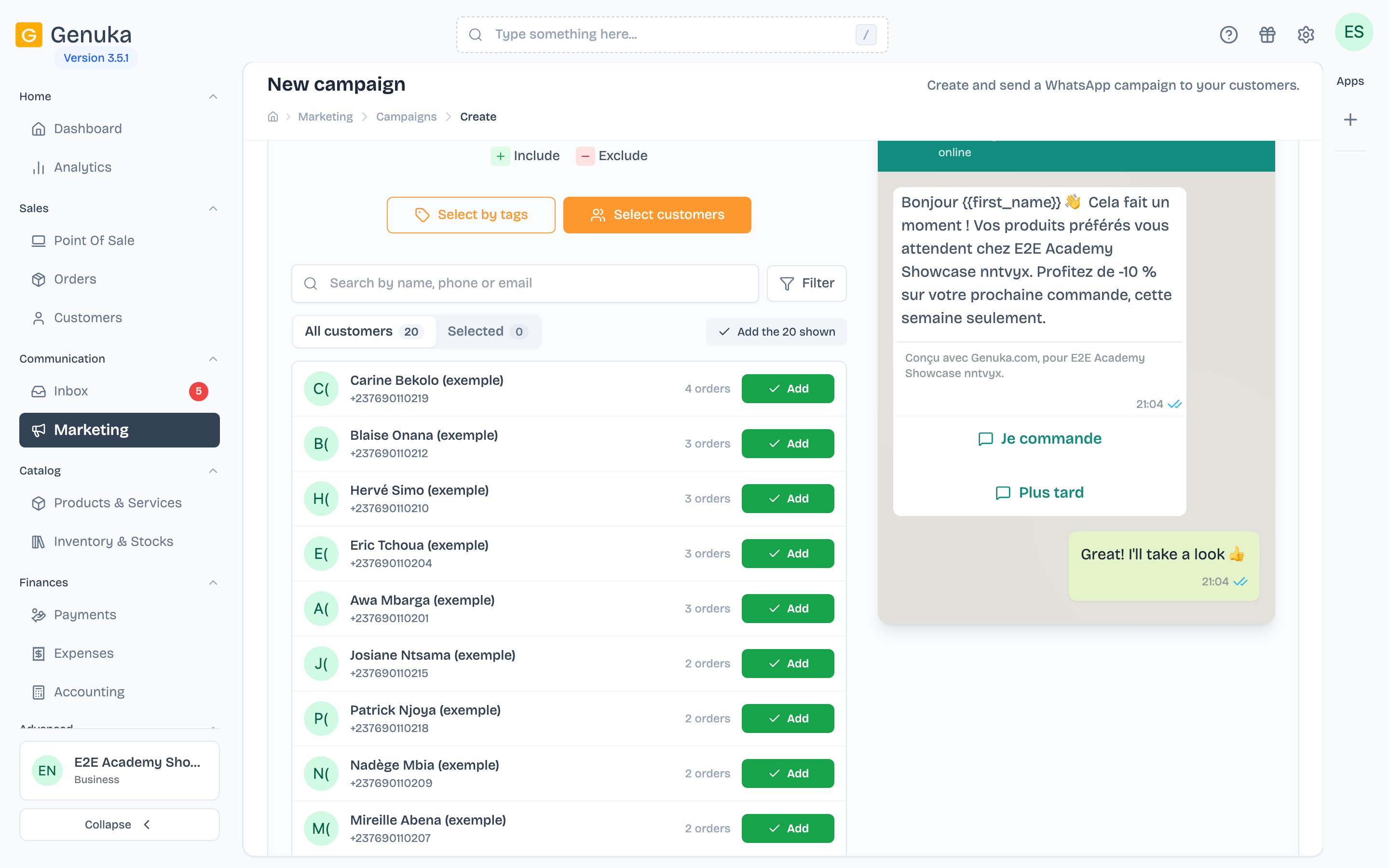 Pick customers one by one
-
The Selected tab shows your list; Remove or Clear selection to correct it.
Check the number of recipients
-
Read Estimated recipients: this is the number of messages that will go out and credits that will be held. Genuka details those it leaves out: "N with no contact on this channel" (no number) and "N excluded by tag".
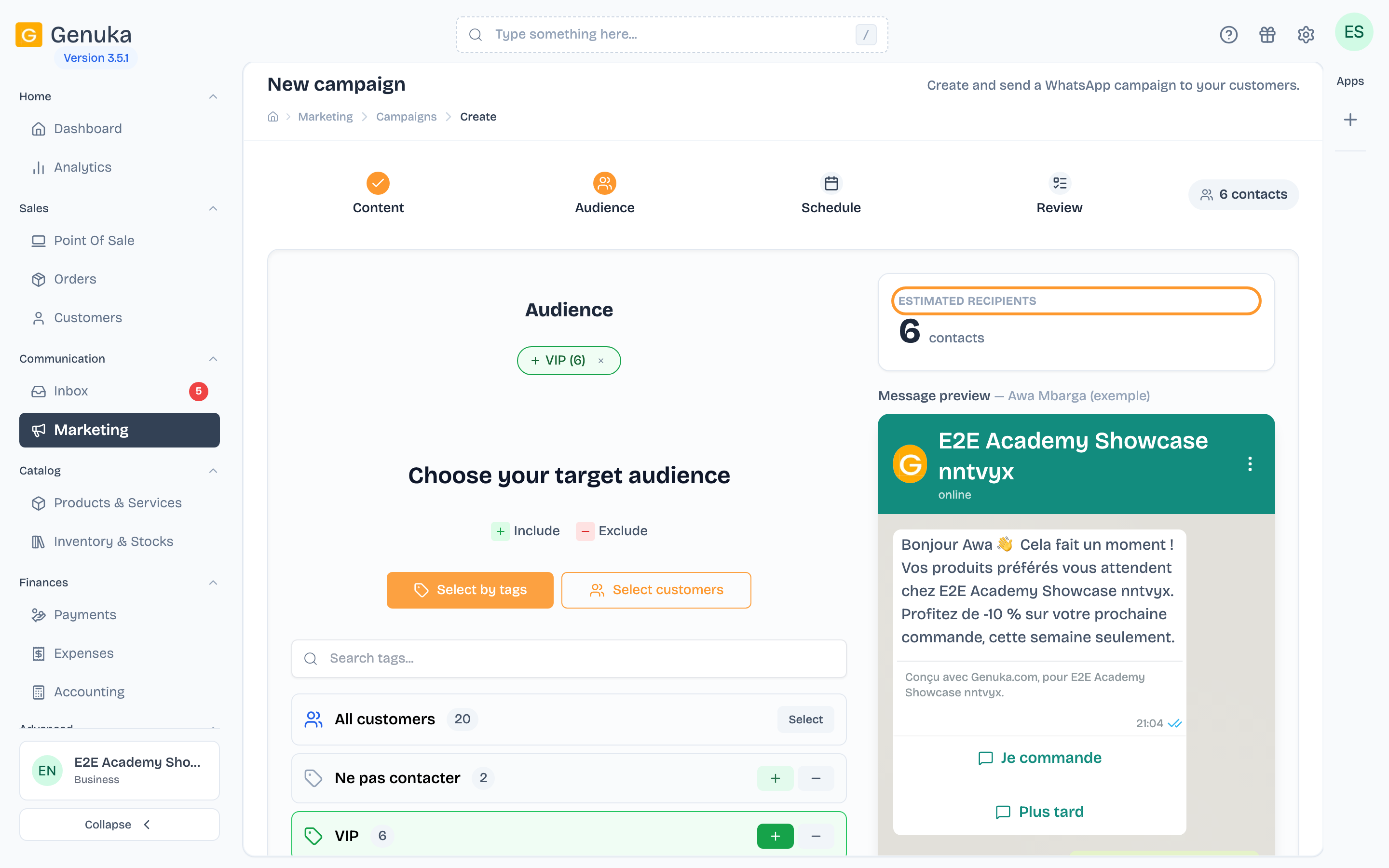 The exact number of recipients
-
Click Next → to go to the Schedule step.
Target a segment with the assistant
The campaign screen doesn't offer saved segments. To aim at "customers who haven't ordered for 90 days" or "those who spent more than 100,000 F", use the Genuka assistant:
- Ask it to find these customers, for example: "Find customers who ordered at least twice but not since July 1st". It can combine the sign-up date, the order and last order dates, the number of orders, the amount spent, a product, a collection or a product tag bought, the shop, the customer type and the content of notes.
- It tells you the exact number of customers found.
- Ask it to put a tag on them (for example "July follow-up"). It shows you a confirmation card with that number; nothing is changed until you agree.
- In the campaign, include that tag.
Edge cases and common mistakes
- "No one left to send to" at launch: no selected customer has a number, or the whole audience is excluded by tag.
- "Not reachable on WhatsApp" in the manual list: the customer's number looks invalid (too short, too long or without a country code). Fix the customer record.
- An excluded tag and a manual list don't mix. With customers picked one by one, the counter removes those who carry an excluded tag, but the message is still sent to them. Remove them from the list yourself.
- Only customer tags are offered, not product tags. The list loads 100 at most.
- A tag-based audience is calculated at launch, not at creation: a customer tagged in the meantime will be included.
- The manual list can only be changed in draft. Once the campaign is launched, duplicate it to change recipients.
- Relaunching a finished campaign only sends the message to customers who haven't received it yet, for example those added to the tag since.
- Free message: whatever the mode, only customers who wrote to you within the last 24 hours receive it.
- A customer who asked to stop receiving your messages is not automatically removed from your audiences. See Manage customers who no longer want your messages.
FAQ
How do I exclude customers who already bought the promoted product? Have the assistant tag them (criterion "bought this product"), then exclude that tag in the campaign.
Is the number shown the one that will be charged? Yes: Estimated recipients is calculated by Genuka as at sending time. One credit per recipient is held at launch, and unsent messages are credited back at the end.
Can I import a list of numbers for a campaign? No, a campaign targets registered customers. Import your contacts as customers first.
See also
Sign in to keep track of the lessons you have done.
Open in Genuka