Follow the results of a WhatsApp campaign
What you will have: You can read how many customers received, read and replied to your campaign, and how many orders it brought.
You see which campaigns bring orders and you stop paying for those that bring nothing.
Before you start
- Lesson « Create, test and schedule a WhatsApp campaign »
- A campaign already sent
Signed in to Genuka, this list ticks what your account already has.
The video
Why it matters
A campaign costs credits; it must bring customers and orders. Genuka follows each message all the way to the customer's phone, counts the replies, and links to the campaign the orders placed in the following week. This way you know which campaigns to repeat and which to drop.
Summary
Open the campaign in Menu › Communication › Marketing › Campaigns. The indicators at the top of the page update live during sending. The recipients table tells you, customer by customer, where the message stands and why it failed. Orders placed within 7 days after sending are attributed to the campaign.
Prerequisites
- Access to the Marketing menu (permission
marketing.*). - A launched campaign.
Steps
-
Open Menu › Communication › Marketing › Campaigns. At the top of the list: Total campaigns, Messages sent and Delivery rate, all campaigns combined.
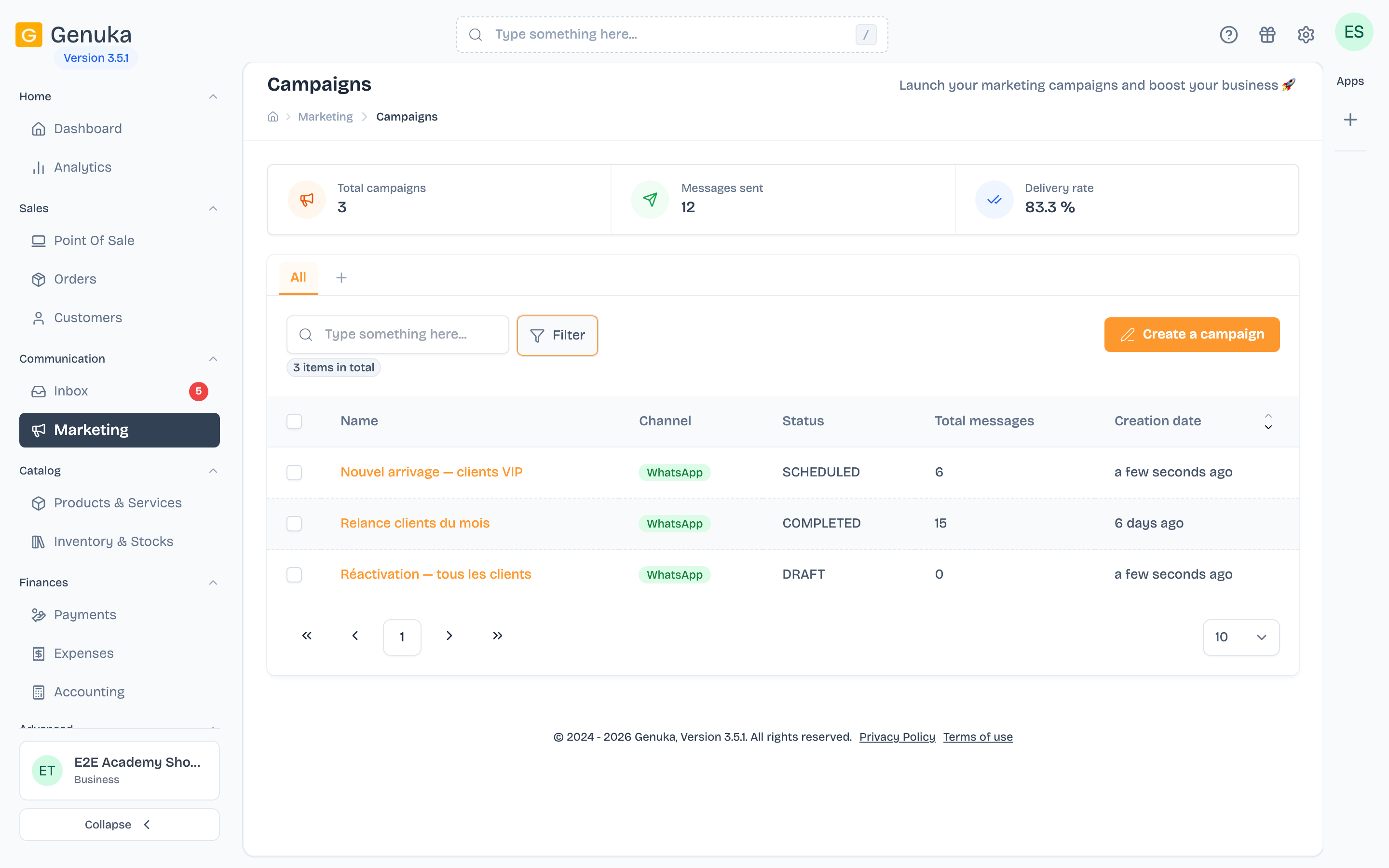 Your campaigns at a glance
-
Click a campaign. Read the indicators (see the table below).
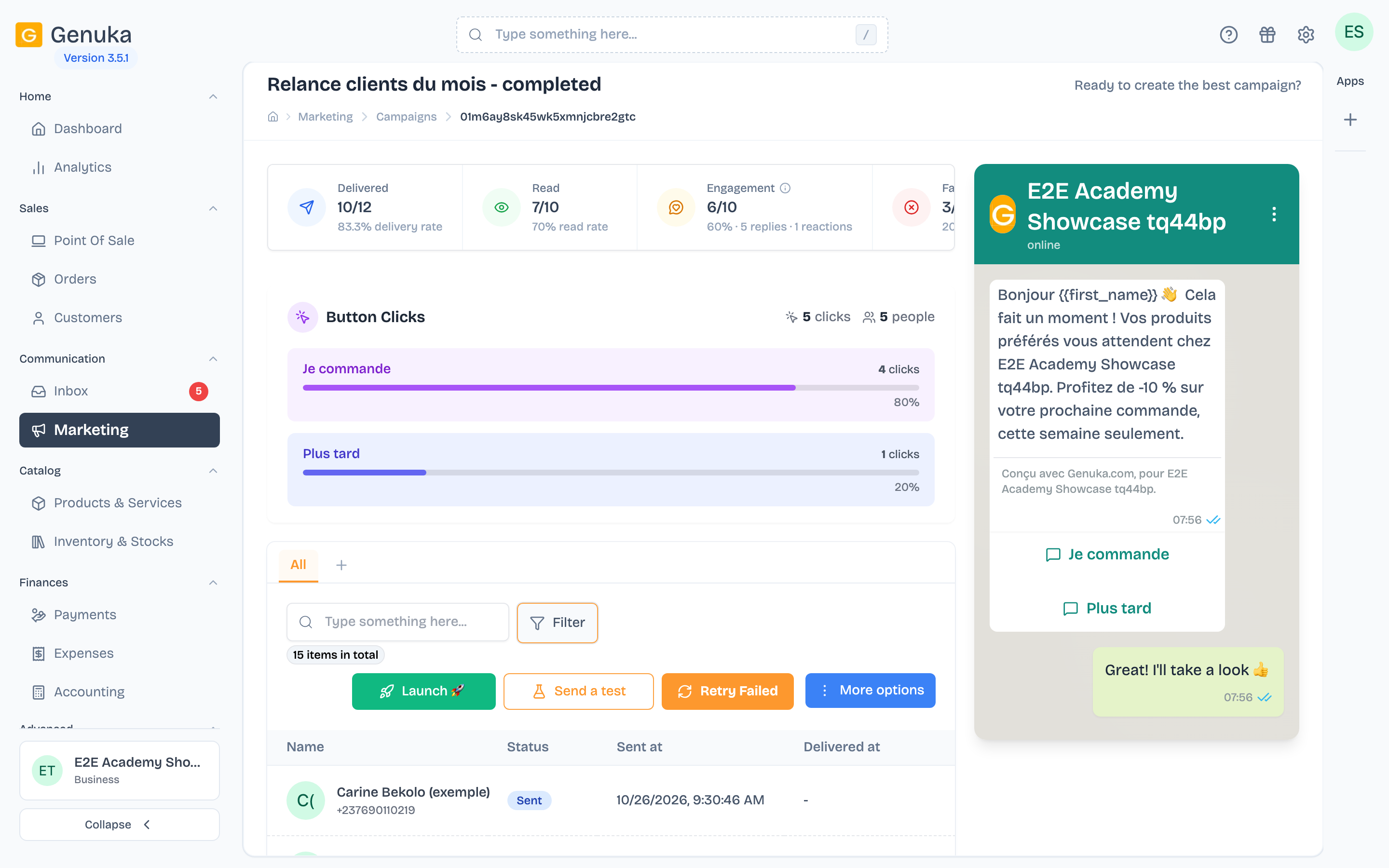 Delivered, read, failed, orders
-
If the template has quick reply buttons, the Button Clicks block counts the clicks and the people. Click a button to keep only the customers who tapped it in the table.
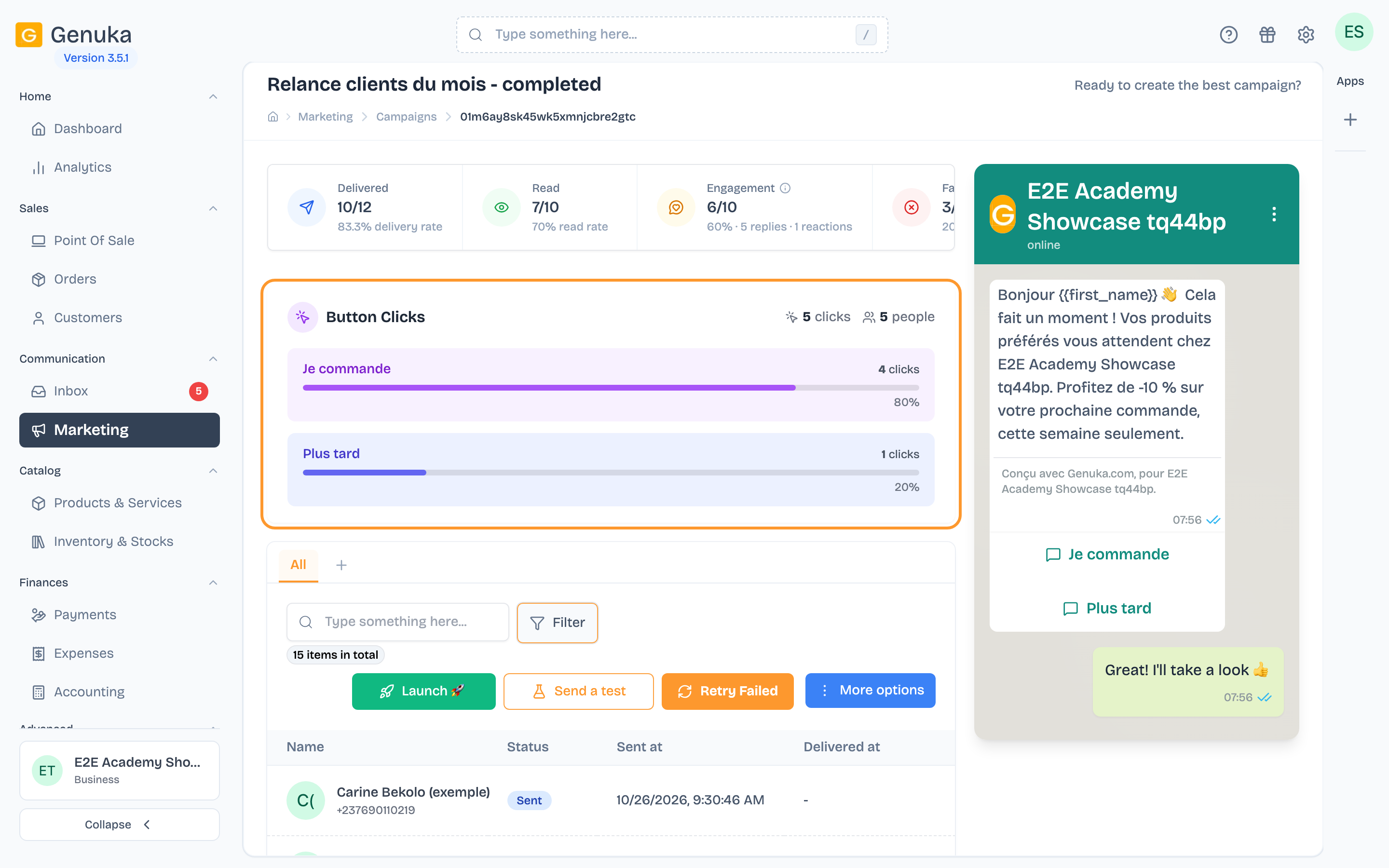 Who clicked your buttons
-
Scroll down to the recipients table (columns Name, Status, Sent at, Delivered at, Read at). The filters let you keep a specific Status or Customers who ordered. A badge marks each "Customer who ordered after this message".
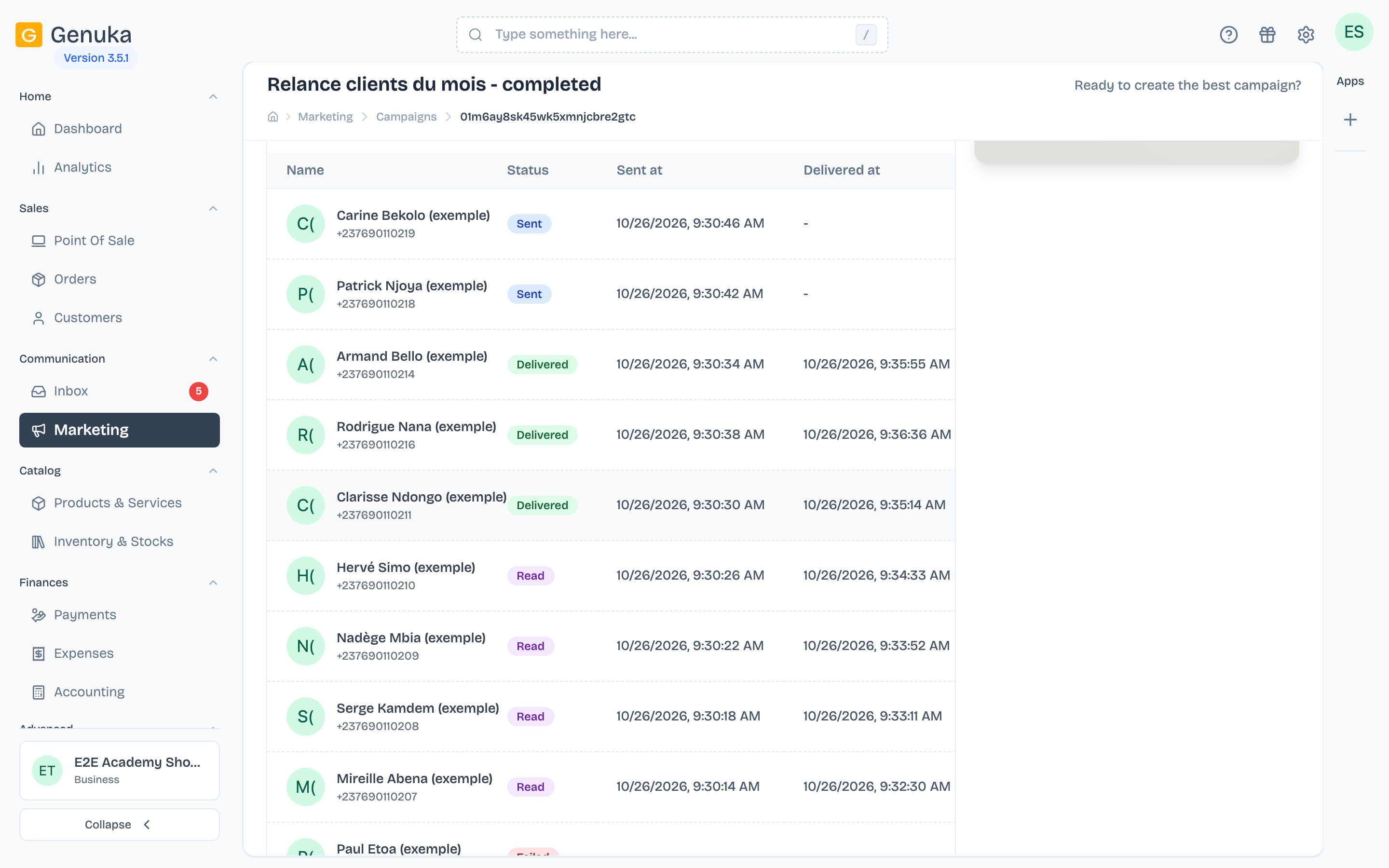 The detail per recipient
-
Click a recipient to open Customer Details: the activity timeline (sent, delivered, read, clicks), the conversation, and, in case of failure, the reason in plain words.
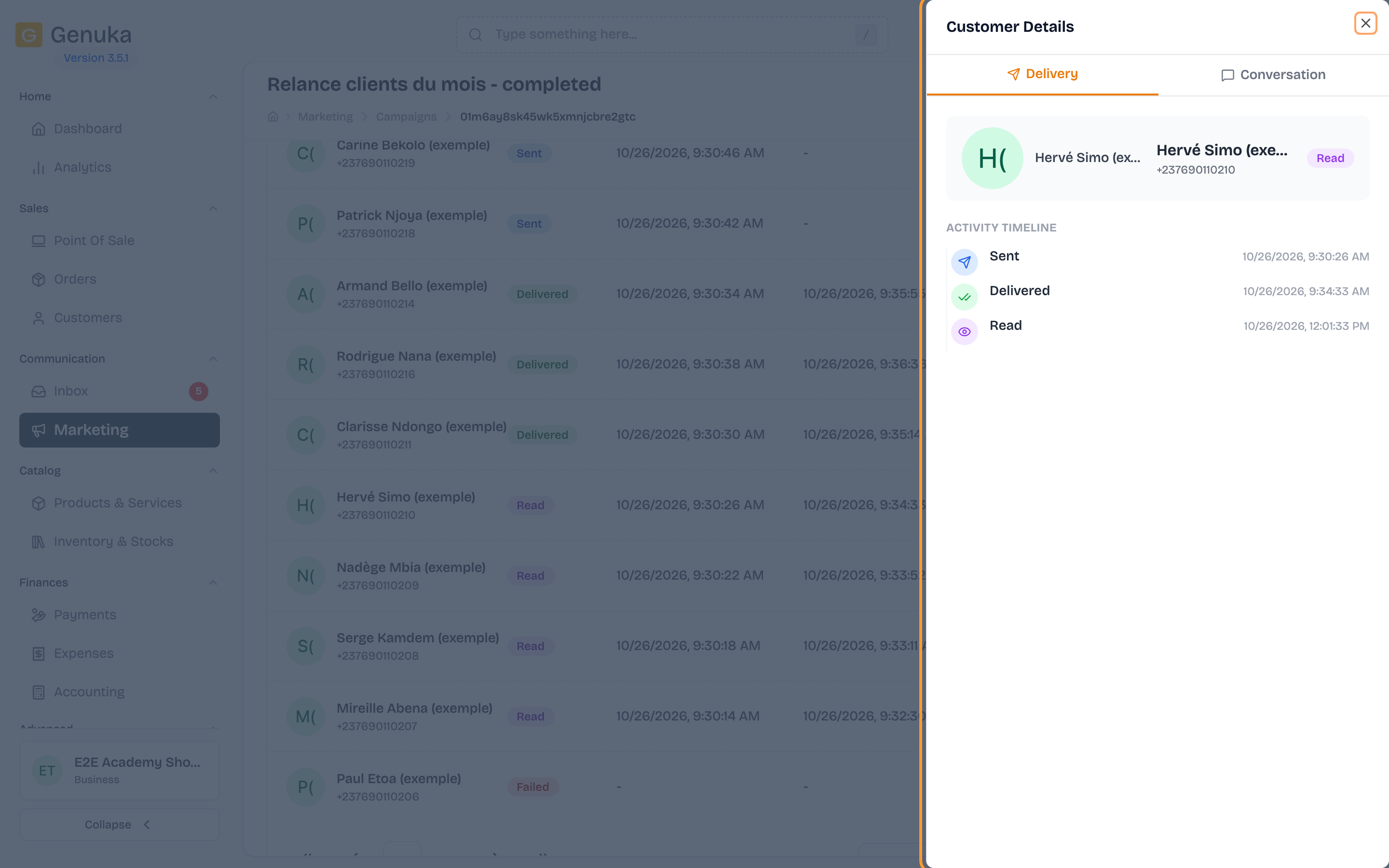 A customer's history
-
To export the list of recipients, use the table's export button.
Campaign indicators
| Indicator | What it counts |
|---|---|
| Delivered | Messages that reached the phone, out of the messages sent, with the delivery rate. |
| Read | Messages opened, out of the messages delivered, with the read rate. |
| Engagement | Recipients who replied within 7 days of sending or reacted to the message (emoji), with the replies and reactions detail. A customer who did both counts once. |
| Failed | Messages refused by WhatsApp, with the failure rate. |
| Orders | Number of attributed orders and their amount. |
| Paid orders | Among them, those paid or partially paid, and their amount. |
| Pending | Messages not yet sent ("waiting to send"), shown during sending. |
The Marketing home page (Performance overview) gives the overall view over a period: Messages sent, Messages read, WhatsApp revenue and Available credit.
How an order is attributed
An order counts for the campaign when:
- it was placed by a customer who received the message;
- it was created within 7 days after the send to that customer;
- it is at invoice stage: quotes, purchase orders and canceled orders don't count.
It doesn't matter where the order comes from (register, website, entry in the dashboard): the customer is the link. The amount follows your revenue calculation settings.
The status of each message
| Status | Meaning |
|---|---|
| Pending | Not sent yet. |
| Sent | Gone to WhatsApp. |
| Delivered | Received on the customer's phone. |
| Read | Opened by the customer. |
| Failed | Refused by WhatsApp. The reason shows in Customer Details. |
Retry failed messages
- All failures of a finished campaign: Retry Failed button. The Retry Failed Messages window announces the number of messages and the credits needed (one per message). Confirm with Retry.
- A single recipient: in Customer Details, Resend to this contact (one credit).
Before resending, read the reason for the failure: resending to a number without WhatsApp will fail again.
Edge cases and common mistakes
- "This number could not receive the message": the number has no active WhatsApp account or has blocked your business. Check it with the customer.
- "WhatsApp has limited promotional messages to this customer": they have already received many promotions recently. Try again in a few days.
- "This customer no longer wishes to receive your messages": they unsubscribed from your promotions on WhatsApp. Don't follow them up. See Manage customers who no longer want your messages.
- "Too many messages sent in a short time": WhatsApp has slowed your sends. Try again later.
- "This message template is suspended": Meta has paused the template after reports. Use another template.
- Few "Read": WhatsApp doesn't always report reading, for example when the customer has turned off read receipts. The real figure may be higher.
- An order counts in two campaigns: if a customer received two campaigns in the same week, their order is attributed to both.
- Clicks on a link or phone button are not counted: the action happens directly on the phone. Only quick reply buttons are measured.
- The campaign status shows in English, in capitals in the list (DRAFT, RUNNING, COMPLETED...) and after the name in the page title. The list's Status filter offers template statuses (Approved, Pending...), which don't match campaigns: only Draft really filters.
FAQ
Where do I read my customers' replies? In the Inbox: each campaign message appears there in the customer's conversation, and their replies follow. The conversation tab of Customer Details also leads there.
Does an order placed 10 days after sending count? No, attribution stops 7 days after the send to the customer.
Are the figures final at the end of sending? No. Reads, replies and orders keep coming in during the following 7 days.
See also
Sign in to keep track of the lessons you have done.
Open in Genuka