Create a WhatsApp message template and get it approved by Meta
What you will have: Your first WhatsApp message template is submitted to Meta and you know how to read its status.
Without an approved template, you can only write to a customer within 24 hours of their last message: the template unlocks campaigns and follow-ups.
Before you start
- Lesson « Connect WhatsApp and the Inbox channels »
- WhatsApp is connected
Signed in to Genuka, this list ticks what your account already has.
The video
Why it matters
WhatsApp only lets a business write freely to a customer during the 24 hours after that customer's last message. After that, and for any campaign, you need a template: a standard message reviewed and approved by Meta. You prepare it once in Genuka, then reuse it for all your sends.
Summary
A template is created in Menu › Communication › Marketing › Templates, Create a template button. Genuka sends it to Meta for review right away. Until its status is Approved, it does not appear in the template choice of a campaign.
Prerequisites
- Access to the Marketing menu (permission
marketing.*). - A WhatsApp Business number connected in Marketing › Settings, WhatsApp tab. With no connected account, the editor shows "No WhatsApp Business Accounts found. Please connect one in the settings."
Steps
-
Open Menu › Communication › Marketing › Templates, then click Create a template. The New Template screen opens, with the editor on the left and the message preview on the right. The WhatsApp channel is selected.
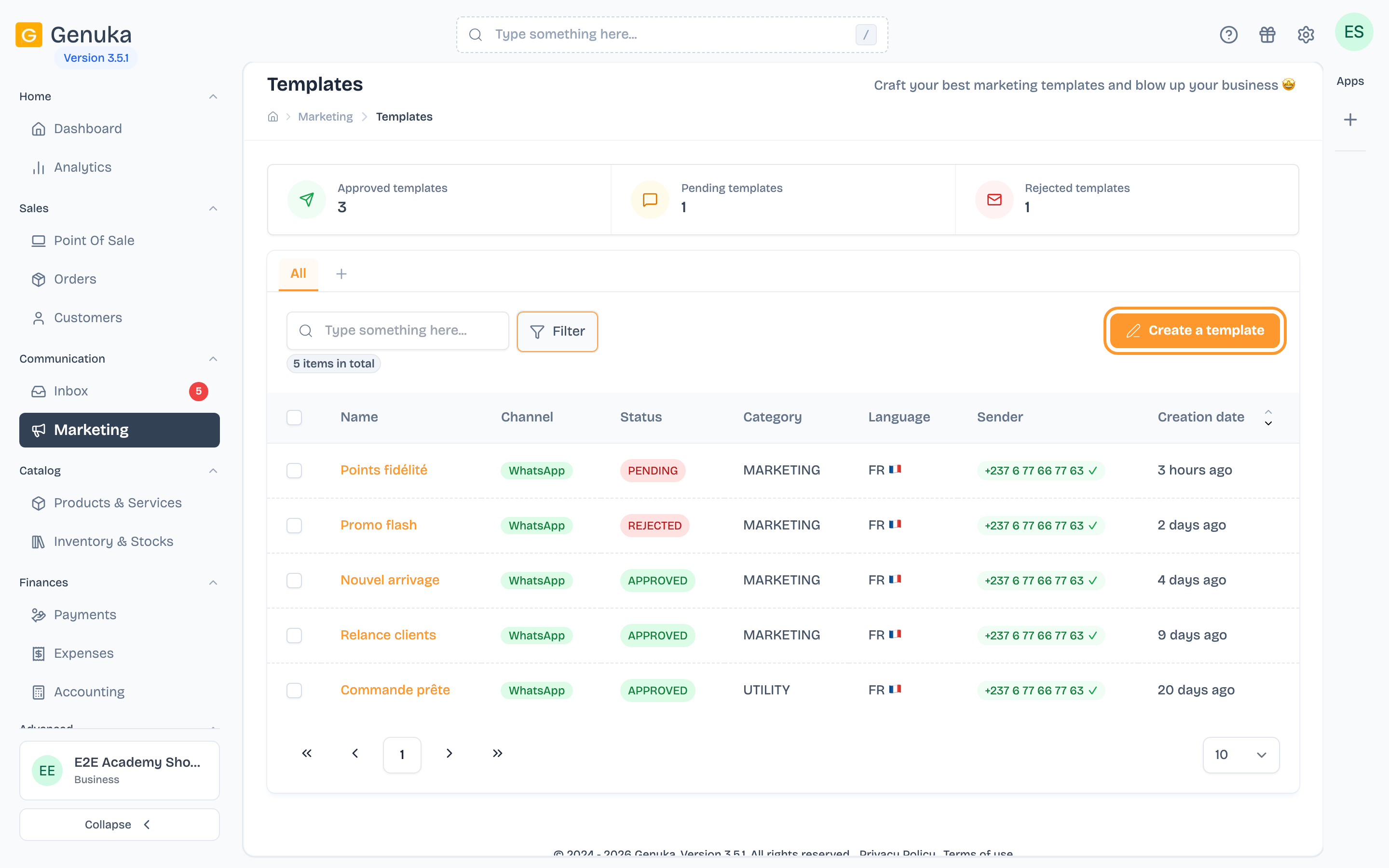 Marketing › Templates
-
Enter the Template Name, for example "Customer follow-up".
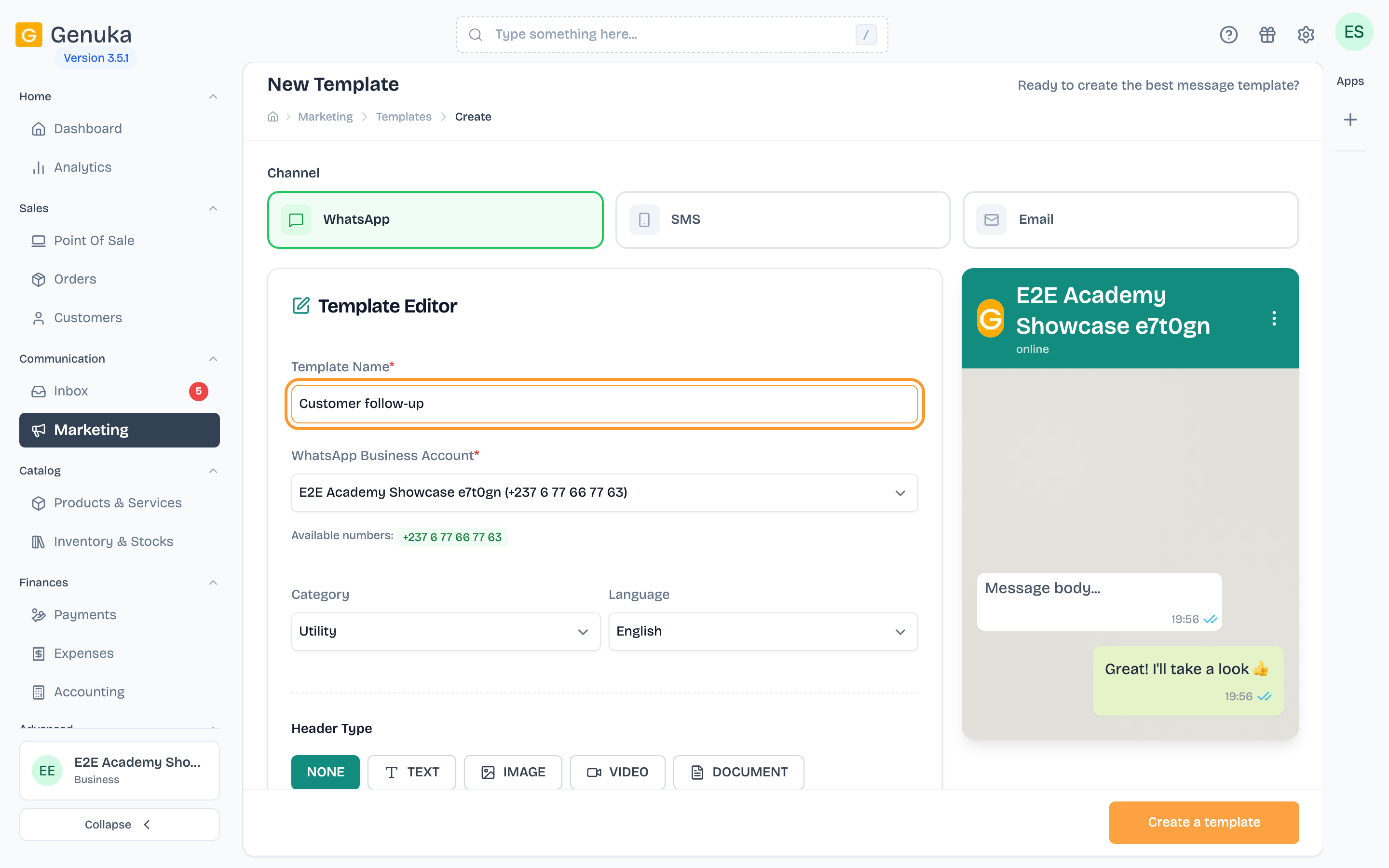 Name the template
-
Check the WhatsApp Business account (WhatsApp Business Account field). The first account is chosen by default; the numbers it contains show below. The template can only be sent from those numbers.
-
Choose the Category: Marketing for a promotion or a sales follow-up, Utility for information tied to an order or an account. The default setting is Utility: change it if your message promotes something.
-
Choose the Language: French or English.
-
Choose the header type (Header Type): NONE, TEXT, IMAGE, VIDEO or DOCUMENT. A text header has at most 60 characters. For an image or a video, see Add an image, a video or a document to a WhatsApp campaign.
-
Write the message Body (1,024 characters at most, required). To personalize, insert a variable: type
{,/or@in the body, or click one of the variables offered under the field, for example{{first_name}}for the customer's first name. Your customers' custom fields show in blue.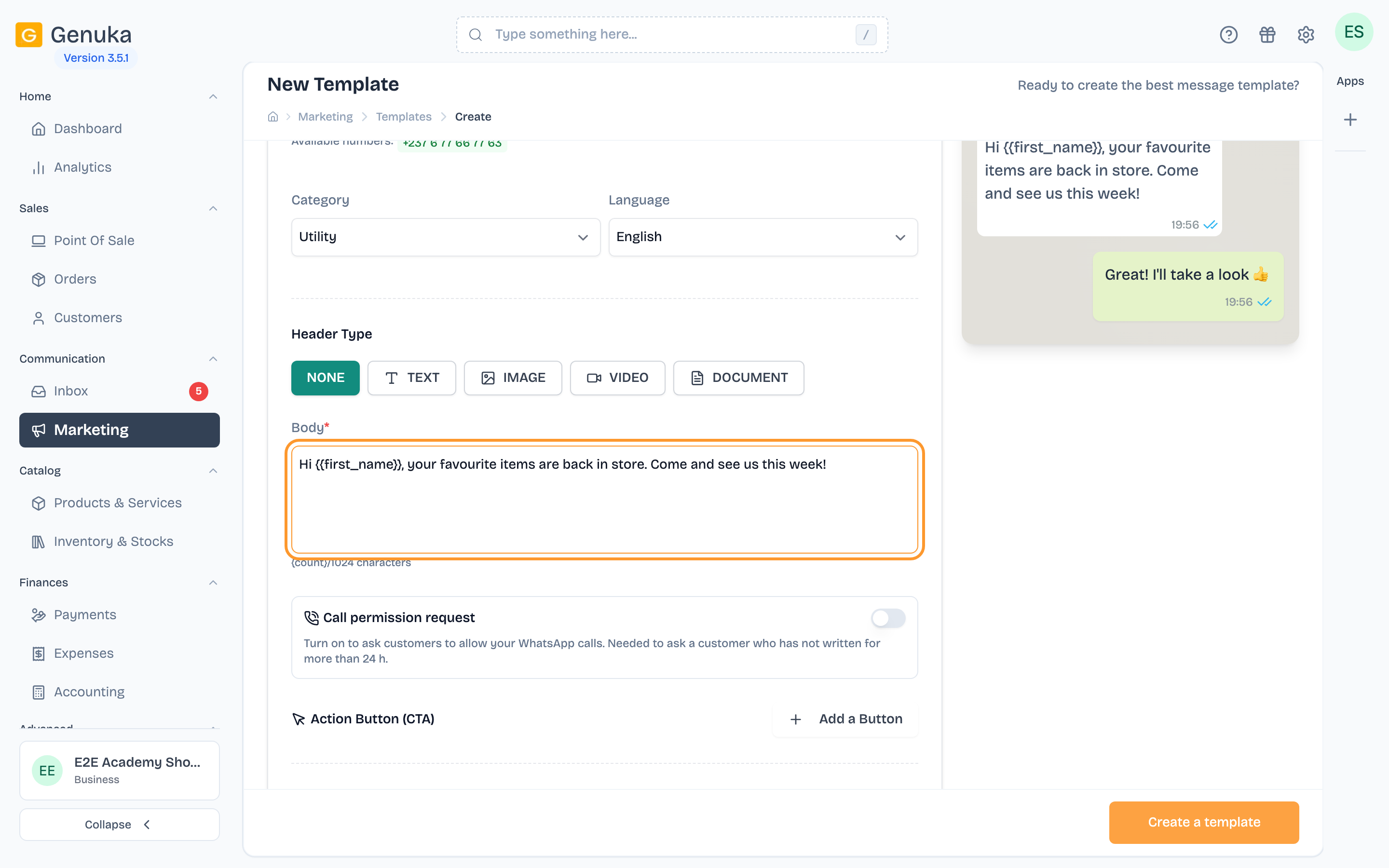 Write the body and add variables
-
Optional: add buttons with Add a Button (Action Button (CTA) section). Add link opens a web address, Quick reply offers a one-tap answer. The Button Text has at most 25 characters.
-
Click Create a template. Genuka saves the template and submits it to Meta straight away.
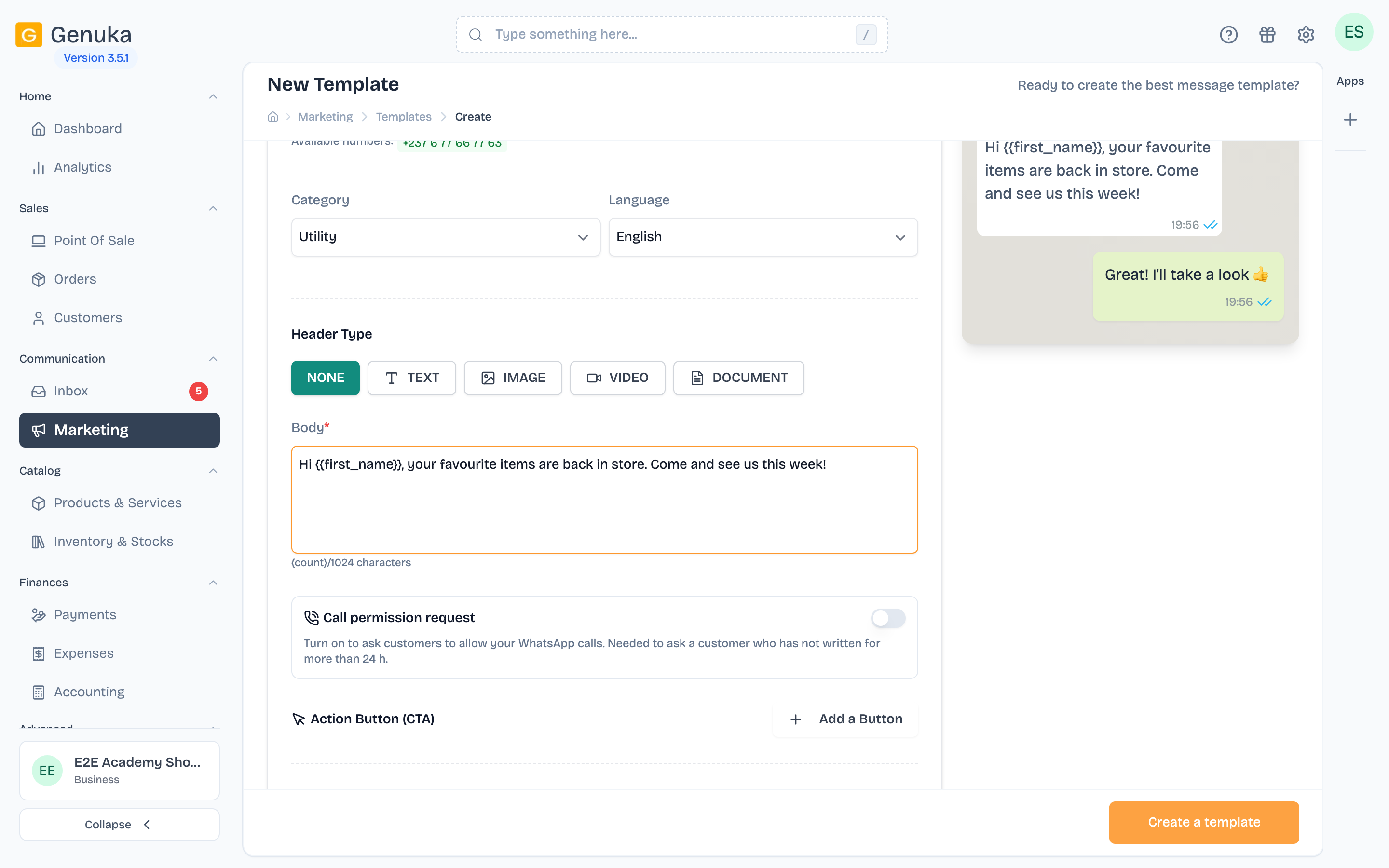 Check the preview, then submit to Meta
-
Go back to the Templates list to follow the status. Meta usually answers within a few minutes, sometimes longer.
Template statuses
| Status | Meaning | Usable in a campaign |
|---|---|---|
| Draft | Saved in Genuka, not yet accepted by Meta. | No |
| Submitted / Pending | Meta is reviewing the template. | No |
| Approved | Meta has validated it. | Yes |
| Rejected | Meta has refused it. Fix it and save it again, or create another one. | No |
Meta can also suspend or disable a template that was already approved, for example after reports from recipients. Sends then fail with the message "This message template is suspended".
The Status filter of the list offers Approved, Pending, Submitted, Rejected and Draft. The Marketing dashboard also shows, under Alerts, the number of templates "pending review".
Naming rules
- You write a readable name, Genuka builds the technical name. For Meta, the name sent is your company's name followed by the template name, in lowercase, without accents, with spaces replaced by underscores. "Customer follow-up" at "Awa Shop" becomes
awa_shop_customer_follow_up. In Genuka, you always see your name without this prefix. - One name per language. Two live templates of your company cannot have the same name in the same language. For an English version of a French template, keep the name and change the language.
- Templates created directly at Meta. Genuka only picks up templates whose technical name contains your company's name, and only those of the WhatsApp Business account of your main number. A template created elsewhere, under another name, does not appear in Genuka: recreate it from Genuka.
- Variable names contain only letters, digits, underscores or hyphens, and at most 20 characters. Otherwise, Genuka refuses to save and points to the variable concerned.
Fields and options
| Field | Description | Required |
|---|---|---|
| Template Name | Your name to find the template again. | yes |
| WhatsApp Business Account | Account that will carry the template. Can't be changed after creation. | yes |
| Category | Marketing or Utility. Can't be changed after creation. | yes |
| Language | French or English. Can't be changed after creation. | yes |
| Header Type | None, text (60 characters), image, video or document. The type can't be changed after creation. | no |
| Body | The message, with its variables. 1,024 characters at most. | yes |
| Call permission request | Adds the WhatsApp "Allow calls" button. It replaces the other buttons and only accepts a text header. | no |
| Buttons | Link (text of 25 characters at most, and address) or quick reply (25 characters). | no |
Genuka automatically adds a footer "Conçu avec Genuka.com, pour" followed by your company's name (the footer text is currently in French), visible to your customers under the message.
Edge cases and common mistakes
- The template doesn't appear when I create a campaign. Only Approved templates are offered. A template approved on a different WhatsApp Business account than the chosen number cannot be sent from that number.
- Error message from WhatsApp on saving. Meta refused the submission (name already taken at Meta, non-compliant content, misplaced variable...). The template is not created: fix it and click Create a template again.
- Editing a template restarts the review. On the edit screen, the Update button saves then submits the template to Meta again. The account, category, language and header type are locked.
- The status shows in capitals in the list. The Status column shows the raw value in capitals (APPROVED, PENDING, REJECTED...), while the filter shows readable labels.
- Deleting a template also removes it at Meta. Campaigns already sent keep their history.
FAQ
How much does it cost to create a template? Nothing on the Genuka side: only the messages sent use messaging credits.
How long does approval take? Meta decides. The status updates by itself in the list as soon as Meta answers.
Why was my template rejected? The reason given by Meta is not shown in Genuka. First check the category (a promotion must be Marketing) and the clarity of the text, then fix the template and submit it again.
Can I write to a customer without a template? Yes, if they wrote to you within the last 24 hours: reply from the Inbox, or choose Free message in a campaign.
See also
Sign in to keep track of the lessons you have done.
Open in Genuka